
5 Essential PS5 Features That You Have To Enable Yourself
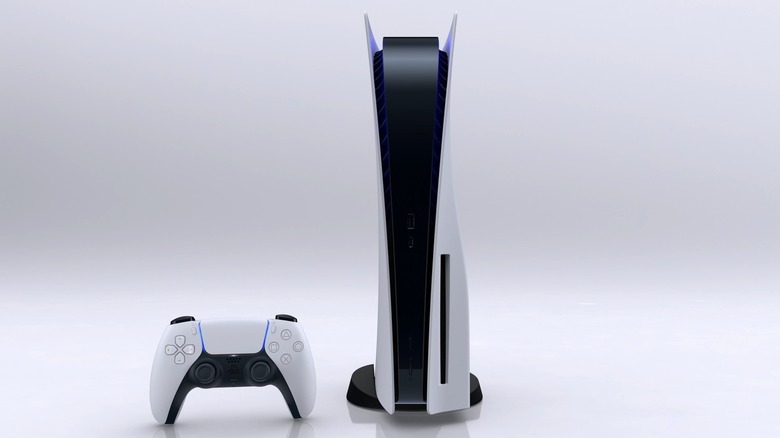
Upon its launch in 2020, the PlayStation 5 has progressed Sony's home console legacy into the next generation. Boasting a library of acclaimed games and impressive hardware, the PS5 destroys the Xbox Series X|S by comparison. But while the console is perfectly fine to play right out of the box, there are features that Sony doesn't spoon-feed gamers to improve and tailor its performance. We're not talking about performing once a year PS5 maintenance, but options that can be toggled on and off to further optimize the console.
Like any console, the PS5 has default settings that ensure that it runs optimally on most common displays and home setups. If you have a setup that can accommodate the console's more intensive settings, we've got suggestions to help your PS5 really fire on all cylinders. Keep in mind that these are only recommendations, and may not speak to every individual way that you're using your PS5. These are five essential PS5 features that you have to enable yourself for a completely optimized experience.
Update your privacy settings
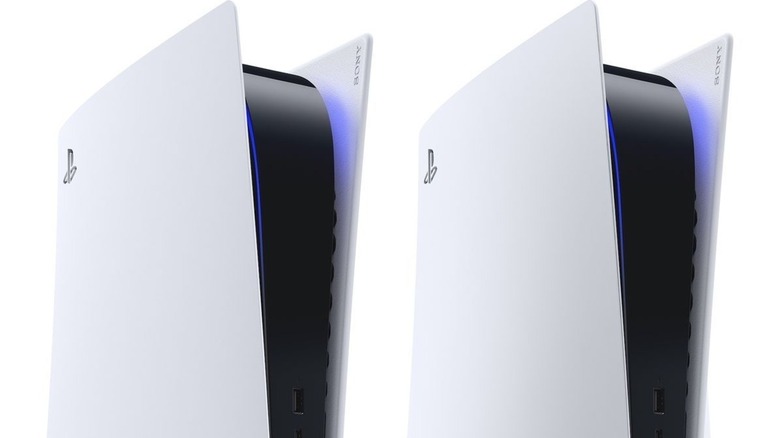
Gamer privacy has been a hot-button issue for years, with companies collecting all sorts of data from users, sometimes without their explicit knowledge. The PlayStation 5 has options to adjust privacy settings for individual users, but you have to dig a bit to find it. In the settings menu from the home screen, choose users and accounts and then select privacy. From there, you can choose how the PS5 will proceed in regard to data collection at your discretion.
While you're at it, you control how other users see you and if they're able to message you directly from this menu. If you don't want strangers to see your real name, your friends list, or what games you've played, this is where you can adjust the visibility accordingly. This also allows you to decide who is able to message you, invite you to PlayStation parties, and send you friend requests. The internet can be a very scary place and the PS5's privacy settings are available to make online functionality your own.
Activate the console's 3D Audio

One of the things you didn't know your PlayStation 5 could do is a feature called 3D Audio. This feature is for users who don't happen to have a home surround system but want something more immersive than their television's default sound settings. This feature is available for both headphones and through the television's native speakers with how they interface with the PS5. Toggling this on will help you tell where enemies are coming from and, hopefully, provide a more audiophile-friendly gaming experience in general.
To activate 3D Audio for headsets, go to settings, 3D Audio (headphones), and create a personalized 3D setting based on your preferences. For television speakers, go to settings, 3D Audio (TV), and then measure the room acoustics within the menu to optimize the experience. Any gamer who's used to playing games in surround sound, be it through headphones or a dedicated surround sound setup, will tell you that it makes a world of difference. The PS5's 3D Audio might not be quite the same as investing in a full surround system, but it does make for a noticeable improvement without one.
Mute the controller's microphone
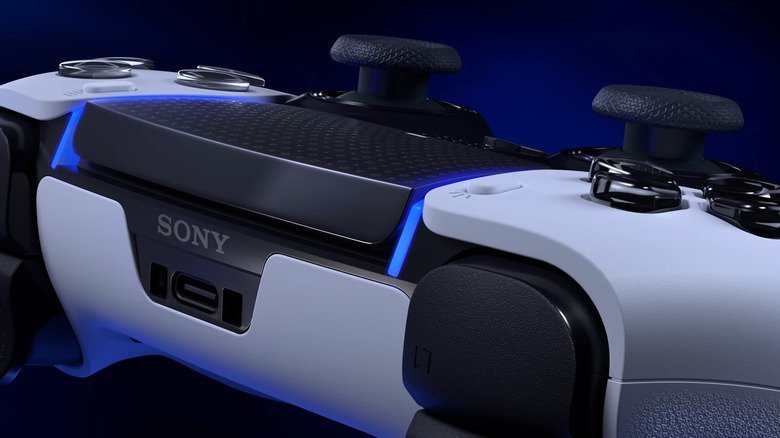
The DualSense PS5 controllers have a lot of features, including a built-in microphone that, by default, is on. The microphone is sensitive enough that players can have the controller sitting innocuously in their lap and anything they said could get picked up by the hardware. That means when you're raging whenever you're getting beat in games like "Mortal Kombat 11" or "Injustice 2," players can likely hear everything that you're saying. Nobody wants to be outed as a toxic gamer so, fortunately, the PS5 has a feature to turn off the DualSense's microphone.
To toggle the DualSense microphone, access the settings menu on the PS5 home screen and choose sound. From there, select microphone and choose mute under microphone status when logged in to make mute the new controller mic setting. On the quick menu, accessed by pressing the controller's PS button, choose the microphone icon and select mute. This will prevent any auditory accidents that might be captured by your DualSense controller in the heat of the moment.
Toggle performance mode
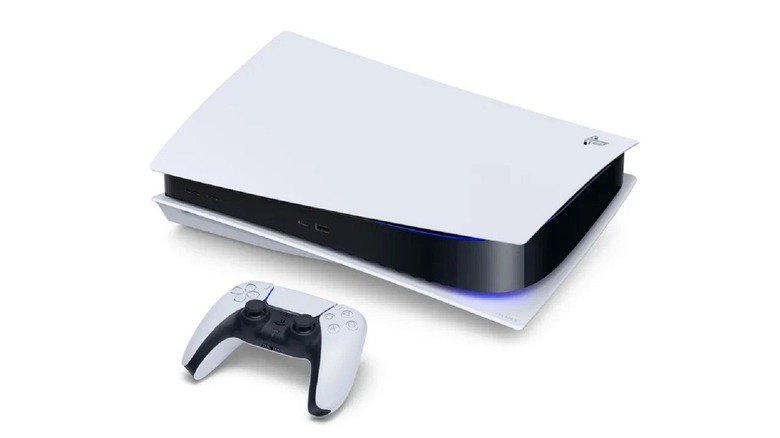
For players who are experiencing noticeable frame rate drops and slight lag, they can change how their PS5 handles running games. The PlayStation 5 can toggle between favoring performance over presentation with the console's performance mode in its settings. In order to accomplish this, the console lowers the overall resolution in which games are displayed and mitigates its use of ray tracing. These compromises help increase and stabilize the console's frame rate output to avoid drops and lags.
To switch to performance mode, go to settings from the home screen and then saved data and game/app settings. From there, go to game presets and then select performance mode or resolution mode, choosing performance mode if you're looking to steady the frame rate. Again, making this selection sacrifices the ability of your PS5 to run at 4K resolution unless you switch back to resolution mode. But when dealing with fast-paced and frenetic action games, sometimes a stable frame rate is the priority.
Allow for remote play
Thanks to the PS Remote Play app, players don't necessarily have to be home in front of their consoles to play them. So long as you have a strong WiFi connection and a PlayStation controller handy, you can play quite a few titles from your smart device. This requires downloading the PS Remote Play app, of course, though fortunately the app itself is free. From there, after logging your profile into the app, enable remote play under the settings options on the home screen.
You'll be surprised how well many games run on a smart device through the PS Remote Play app as long as your internet connection is strong enough. Enabling remote play lets you take that PS5 action on the road, provided you've got a controller handy. Naturally, less technically intensive games tend to work better with this feature, but the app is more capable than it initially appears. The de facto heir apparent to the PlayStation Portable and Vita legacies, the PS Remote Play app offers a possible future for portable gaming.