
5 Essential GTA 6 Features That You Have To Enable Yourself
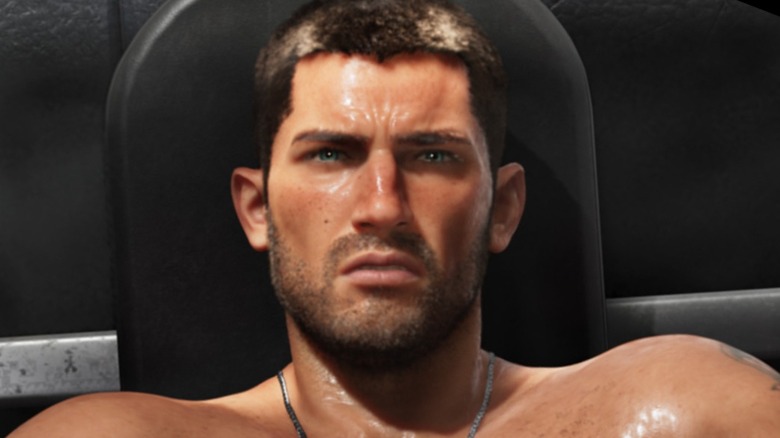
"Grand Theft Auto 6" is an absolutely fantastic experience right out of the box. You can boot the game up for the first time, not change a single setting, and still have a great time exploring the map of Leonida and playing as Jason and Lucia. However, if you want to make "GTA 6" an even better experience, there are some features and settings that you'll want to enable before getting too far into the story.
These features and settings aren't absolutely required to play "GTA 6," but they do allow you to customize your playthrough and have an easier time getting adjusted to the game's mechanics. All of these features are found right in the settings menu in "GTA 6," which you can access by hitting the "Options" button on either PlayStation 5 or Xbox Series X|S. From there, you'll have several menus to go through, most of which contain some essential features you'll want to enable.
Control Scheme
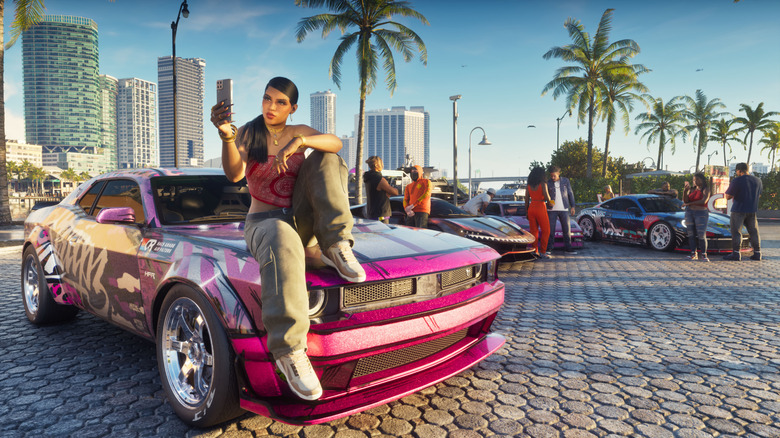
When you visit the settings menu in "GTA 6," the first menu you'll be greeted by is the Control Scheme. The Control Scheme is basically customizing which buttons perform every action in the game. How you sprint, shoot, and interact with objects is all organized through the Control Scheme.
In "GTA 6," there are three Control Scheme presets you can choose from: Default, Classic, and Left-Handed. Naturally, if you're left-hand dominant, you might want to try out the Left-Handed scheme, as that's likely going to feel the best for you. As for Default and Classic, both are worthy options that give you plenty of control over your actions in "GTA 6." The Default Control Scheme is a more modern set of controls that allows you to sprint with L3/LS, interact with Triangle/Y, and shoot with R2/RT.
However, if you're a fan of older "GTA" games, you'll find the Classic scheme more to your liking, as it keeps the original controls mostly in place. Either way, finding your preferred Control Scheme should be step one in "GTA 6."
Aiming sensitivity
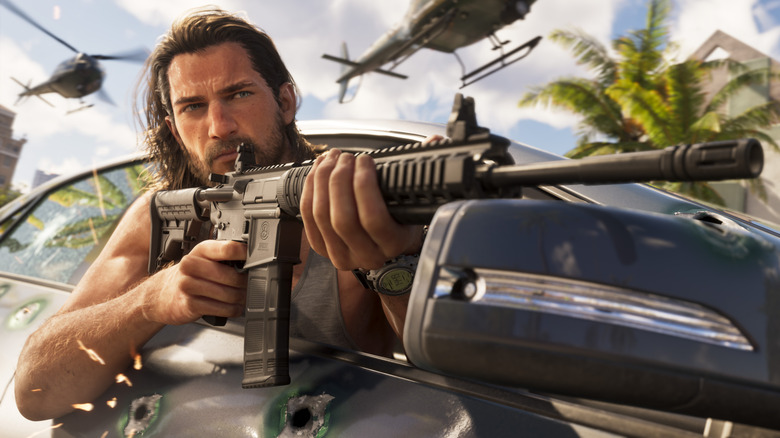
In the "Controller" settings menu of "GTA 6," you'll find several options to change various sensitivities. You have Horizontal and Vertical Look Sensitivity as well as Horizontal and Vertical Aim Sensitivity, all of which you'll likely want to change immediately. The default sensitivity values are set fairly low, giving you very little control over your character or aim while shooting. You'll want to slowly bump these values up across the board until you feel comfortable moving and aiming.
Following those settings, also check out the Aim Response Curve setting. This is set to "Default" out of the box, but we found the Aggressive option was best in "GTA 6." The Precision option was also decent, but both Default and Linear felt too sluggish while aiming. In any case, test out each setting and find the one that feels the best for you.
Targeting and Aim Assist
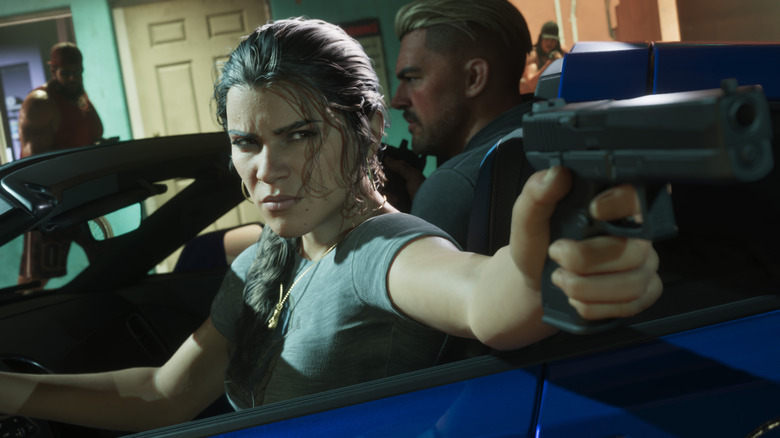
Moving on to the "Gameplay" settings menu, the first thing you want to change here are the Targeting and Aim Assist Strength settings. First up is Targeting: this setting determines how your character aims in on a target. If you choose the Lock-On setting, you'll immediately lock onto an enemy's body when aiming in, and you can customize the time it takes to lock onto them. However, if you want something more realistic, you can choose the Partial or Free Aim Targeting settings, which give you more control over what enemies you target.
Next, you can adjust the Aim Assist Strength setting. Since most players will be using a controller to play "GTA 6" at its launch, it's best to put this setting at 4, its maximum value. It might feel cheesy, but having Aim Assist Strength set any lower makes it extremely difficult to target enemies who are farther away.
Accessibility settings

If you scroll further down in the "Gameplay" settings menu, you'll find the Accessibility settings. This is where you can truly customize your gameplay experience, as the settings here let you control a slew of features.
Mostly, you're customizing how certain actions are performed. For example, you can change the Focus setting so that it's activated with the touchpad rather than L3 + R3. You can also make it so that certain actions, like aiming, interacting, nitrous, and others, can be activated by holding or pressing their respective inputs.
None of these settings are mandatory to enable or even touch, but they're worth going through to see if you want to customize anything further.
Camera settings
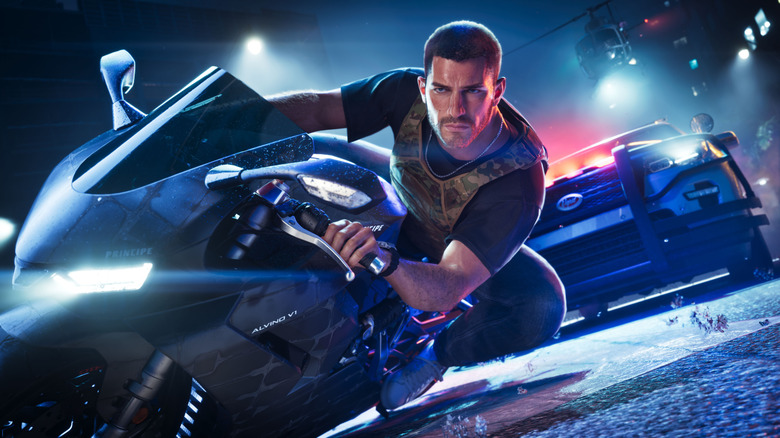
Finally, you can navigate all the way over to the "Camera" settings menu. The camera in any "GTA" game is an underrated feature, yet it's how you see the entire game. For the most part, the default camera settings in "GTA 6" are perfectly fine, and you don't really need to change anything if you don't want to.
However, we found that disabling some features like Weapon Sway, Camera Shake, and Camera Bob made the experience slightly better and less random. You can also change how you bring up the phone, either in third or first-person, and change some specific vehicle camera settings. The Aircraft camera settings specifically were slightly tuned to be more aggressive, as the camera when you're in a plane or jet can be sluggish on quick turns.