
5 Essential Nintendo Switch Features That You Have To Enable Yourself
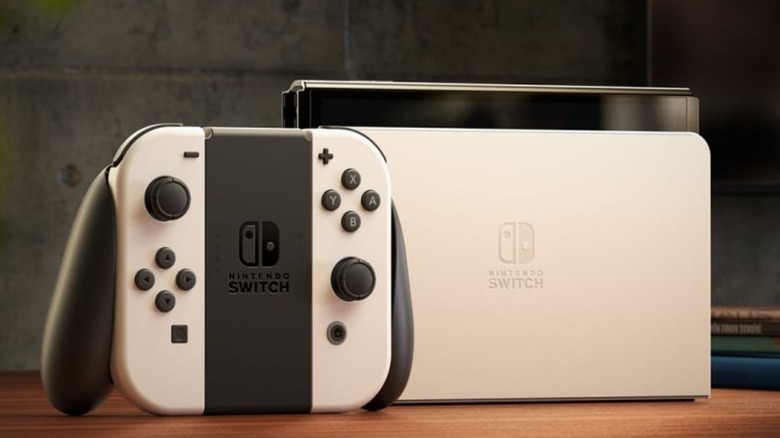
Now nearly a decade since its launch in 2017, the Nintendo Switch is a bonafide success story for the venerable video game company. Released after the Wii U flopped, the Switch restored Nintendo's esteemed place within the industry and proved to be a hit with fans. But even all these years later, there are still things you didn't know your Nintendo Switch could do. This time around, we're focusing on features in the Nintendo Switch that are accessible but require users to toggle for themselves.
The options and features we're suggesting are native to the Switch, not unauthorized tampering that owners can perform on their consoles. These tips optimize the console's performance in their own way, moving away from the default settings that Nintendo had set for it with directing attention to change them otherwise. Just as a reminder, the console experience is largely based on user preference and some of these recommendations might not suit your individual ways to play. These are five essential Nintendo Switch features that you have to enable yourself to get the most out of your console.
Improve the console's download speed
This is a hack that can also improve Nintendo Switch 2 download speeds through adjusting the Switch's online settings. The console's download speed is measured by its maximum transmission unit (MTU) settings, which can be toggled in the console options. The default MTU setting for the Nintendo Switch is placed at 1400, which can directly affect how long it takes larger games to download. Fortunately, Nintendo has given players the option to marginally boost the console's MTU setting, which noticeably accelerates download speeds.
By going into the Switch's system settings menu, players should access internet and then select internet settings. After choosing the Wifi network that your console is currently interfaced with, select change settings and increase the MTU to 1500. It may not seem like a big jump but, when it comes to downloading big games, the change does make a difference. If you feel as if this change is making your console's internet connection unstable, however, remember that you can always change it back in the same menu.
Remap the button configuration
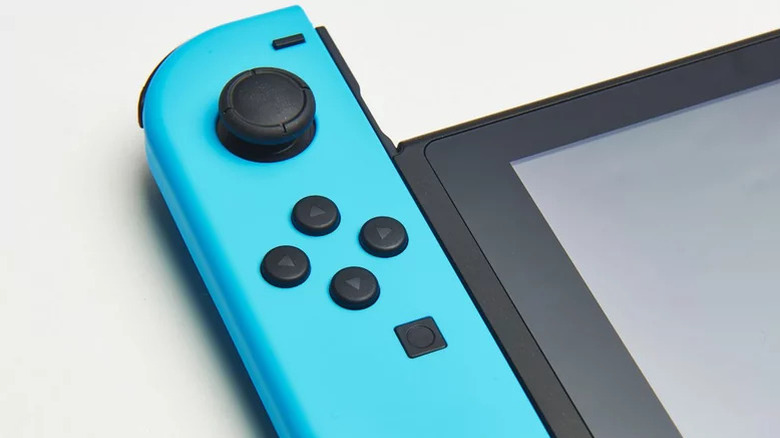
Chances are you might have more than just a Switch, like a PlayStation 5 and/or an Xbox Series X|S. Each console has their distinction default button layouts, which can be especially confusing between the Switch and Xbox as both consoles use letters to denote button inputs. Fortunately, the Switch provides players with the opportunity to reconfigure the button configuration to their personal preferences. This will help players keep things like the A and B button consistent with what they're comfortable with, particularly in comparison to other consoles.
Within the systems settings menu, choose controllers and sensors and, from there, select change button mapping. This will allow you to not only remap the button layout on your Joy-Cons but also the Pro Controller peripherals. Even more impressively, the button layouts for the Joy-Cons can be configured for both vertical and horizontal handling. If you ever get confused jumping between consoles, the Switch does have the tools to mitigate things on their end.
Adjust console resolution for TVs
When played from a television, the Switch has an automatic setting to determine the display's resolution. While usually on point, the console's default is not always accurate and may need to be manually adjusted. Fortunately, this can be altered to whatever your screen's native resolution actually is, so long as you're not working with a 4K display. From the home menu, select settings and then system settings, followed by TV settings, and then TV resolution before setting the resolution accordingly.
There are several Nintendo Switch games where that dynamic resolution really does matter in regard to the overall experience. Later generation titles like "The Legend of Zelda: Tears of the Kingdom" and the "Metroid Prime" remaster really showcase the console's visual qualities in their expansive environments. Even more system-intensive third-party games like "The Witcher 3: Wild Hunt" really need to be played at an optimized resolution. If you're playing your Switch on a TV and notice something seems off about the visual textures and draw distances, you may need to fix your resolution.
Reduce the risk of screen burn
While we're on the topic of screen health, if you regularly leave your console idle for extended periods of time, you're running the risk of screen burn. This can leave faded versions of static images permanently burned into your screen, particularly if your display's brightness is running high. Both the Switch and Switch 2 have options to mitigate the risk of screen burn, and they're more than just adjusting the brightness settings for your console and screens. The first option is to set an auto-sleep setting for your console, so if it's idle for a set amount of time, it'll automatically go into rest mode.
But the Nintendo Switch and Switch 2 have a setting specifically addressing the possibility of screen burn. In the system settings menu, go to TV settings (in some territories listed as TV output) and select screen burn reduction. This will toggle a setting for the console to automatically reduce brightness when it has been sitting idle. After all, who wants an image of Wario burned into their television for the rest of time?
Boost handheld performance
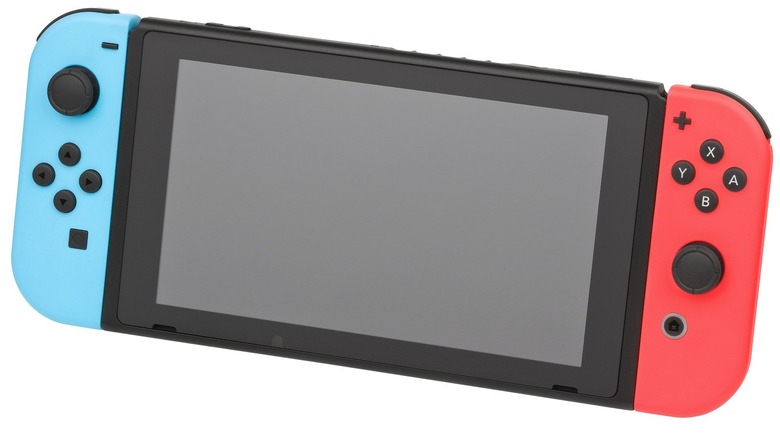
When it comes to things like the Nintendo Switch OLED and its advanced handheld display, you're going to want the most out of its handheld mode. Like the other features in this article, you don't have to resort to jailbreaking your Switch to improve its performance when in handheld mode. This change comes with the virtual memory that can affect your Switch if you constantly put it in sleep mode rather than shutting it down. This is to say that you need to restart or shut off your Switch occasionally to clear its virtual memory cache and improve its performance.
Now, for the Switch 2 more specifically, the console has a feature called Handheld Boost which improves the performance of running Switch 1 games. This effectively makes these games resemble how they would play docked in the Switch rather than with reduced performance in handheld mode. The Switch 2's significantly more powerful GPU makes this possible, working around the lower resolution settings for the Switch 1's handheld mode. So, in short, shut down your Switch and Switch 2 periodically and run your Switch 2 on Handheld Boost if that's your preferred way to play.