
5 Essential Xbox Series X/S Features That You Have To Enable Yourself
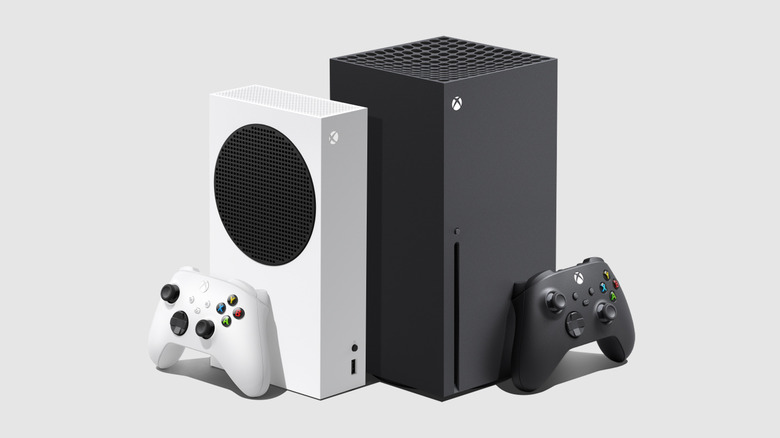
Just as there are essential Nintendo Switch features that you have to enable yourself, the Xbox Series X|S also has options and features that aren't automatically toggled on. As with all home gaming platforms, the default hardware settings don't always provide the best individual experience. Players can and should play around with their console settings to get the most out of their hardware. The Xbox Series X|S is no different, with adjustable settings and optional features that we strongly recommend checking out.
For the purposes of this article, we're sticking with features and changes to the Xbox Series X|S that can be made without unauthorized alterations to the hardware. As a reminder, these aren't necessarily for everyone or their individual gaming setups at home. Rather, these hacks are recommendations to potentially improve or tailor your console's performance to your preferences. With that, here are the essential adjustable Xbox Series X|S features that will optimize your experience.
Utilize the Xbox's 3D spatial sound
Among the essential PS5 features to enable is adjusting the console's 3D Audio settings, especially if you don't have a surround sound system at home. The Xbox Series X|S has a similar feature that doesn't automatically activate when the console is first booted up. Any hardcore gamer playing a game where they need to know where the action is coming from will tell you default sound systems usually don't cut it. That makes enhancing the Xbox's sound settings all the more vital if you don't already have the peripherals to make your experience more intuitive.
To enable the Xbox Series X|S' spatial sound, go to profile & system after hitting the Xbox button. From there, select settings, general, and then volume & audio output to get into the spatial sound options. Within this menu, players can adjust sound settings for headsets or home sound systems interfaced with their television display. For those who don't have any of these peripherals, use Windows Sonic for the Xbox's built-in capabilities to project a more immersive sound.
Interface digital assistants
Even though the Microsoft Kinect was a complete failure, Xbox retained the concept of having voice command for its hardware. In an age of Siri and Alexa, digital assistants are becoming an increasingly prominent fixture in our everyday life. Whereas the voice commands were initially a default setting for the Xbox One, Microsoft gave players more of an option for this feature in the Xbox Series X|S. After all, who doesn't want to turn their home console on and off just by the power of their voice?
In this case, the console gives players the choice to integrate digital assistants by companies other than Microsoft. Within the settings menu, select devices & connections and, after this, choose the option for digital assistants. Players can then interface Alexa or Google Assistant with their console; given that Apple is a direct competitor to Microsoft, Siri is not natively available for this feature. After setting up a digital assistant, players can then choose what commands to configure to the console.
Auto-assign a controller to your profile
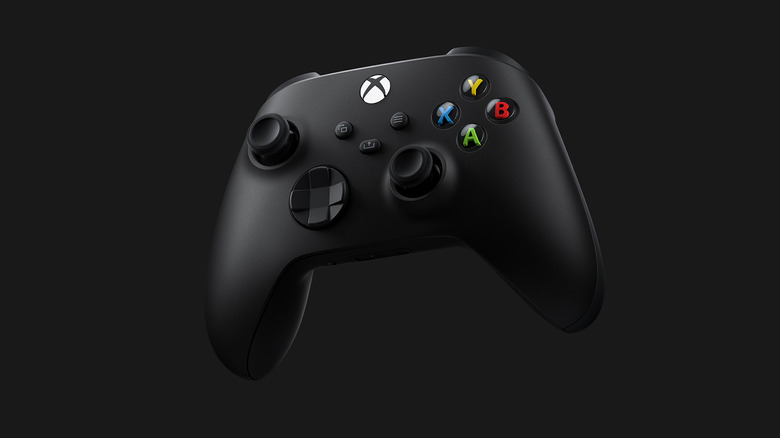
For players that have multiple controllers and players associated with a single console, individual controllers can be assigned to specific profiles. After all, few things are more annoying when turning on multiple controllers than trying to interface and assign controllers. As with many of the features on this list, this can be done through the console's settings menu. Once in the menu, go to account settings and then select sign-in, security & passkey to begin toggling and assigning these controllers.
From this menu, gamers can then assign specific controllers to player profiles interfaced with the console. That means whenever an affected controller is turned on, it automatically logs in a profile, if they aren't already, and is linked to that profile for gameplay. Every console player has their favorite, go-to controller and this feature solidifies that connection. This isn't necessarily a hidden Xbox controller trick, but still incredibly convenient if you're used to local multiplayer.
Optimize the Xbox's visual performance

If you notice that your frame rate is causing screen tearing, lag, and other visual performance issues, the Xbox Series X|S has a potential fix for that. If you're playing on a display that supports HDMI 2.1, you can sync up the display's frame rate to that of the game itself. This can be done through the settings menu, followed by accessing general and then TV & display options before settling on video modes. Within this option, select allow variable refresh rate. This will allow your console to automatically adjust its frame rate on the fly to match a given game.
Within the video modes option, you can toggle high dynamic range (HDR) to automatically boost the brightness and color vibrancy through the console. If you're unsure of your display's capabilities, the Xbox Series X|S has that possibility covered too. Selecting the calibrate HDR option will detect what your display is capable of and automatically adjust accordingly. With so many different televisions available on the market, this ensures you get the most out of your Xbox visually.
Enable remote functionality
The Xbox Series X|S has quite the ecosystem around it, especially in regard to remote functionality through other devices. To allow for devices to be paired to your console, as with everything else on this list, access your Xbox's settings menu. After this, select devices & connections followed by remote features to allow device pairing and functionality. If you have a Windows device with the Xbox app installed, there's a remote play option quite prominently within the app.
As with the lack of Siri, macOS can't currently interface with Xbox remote play, though Apple mobile devices running at least iOS 10 can. Microsoft mobile devices running at least Windows 10 and Google devices at least Android 6.0 can utilize remote play. So long as you have these criteria, a solid internet connection, and have paired these devices to your console, you can play some of the best Xbox games on the go. With smart devices becoming increasingly powerful, it makes sense to have them serve as an extension of a console experience.